Angelini Digital · Menu BoardsGet in touch

For restaurants

Digital Menu Boards

Your menu on every TV in the store, changed from your phone, live within a minute.
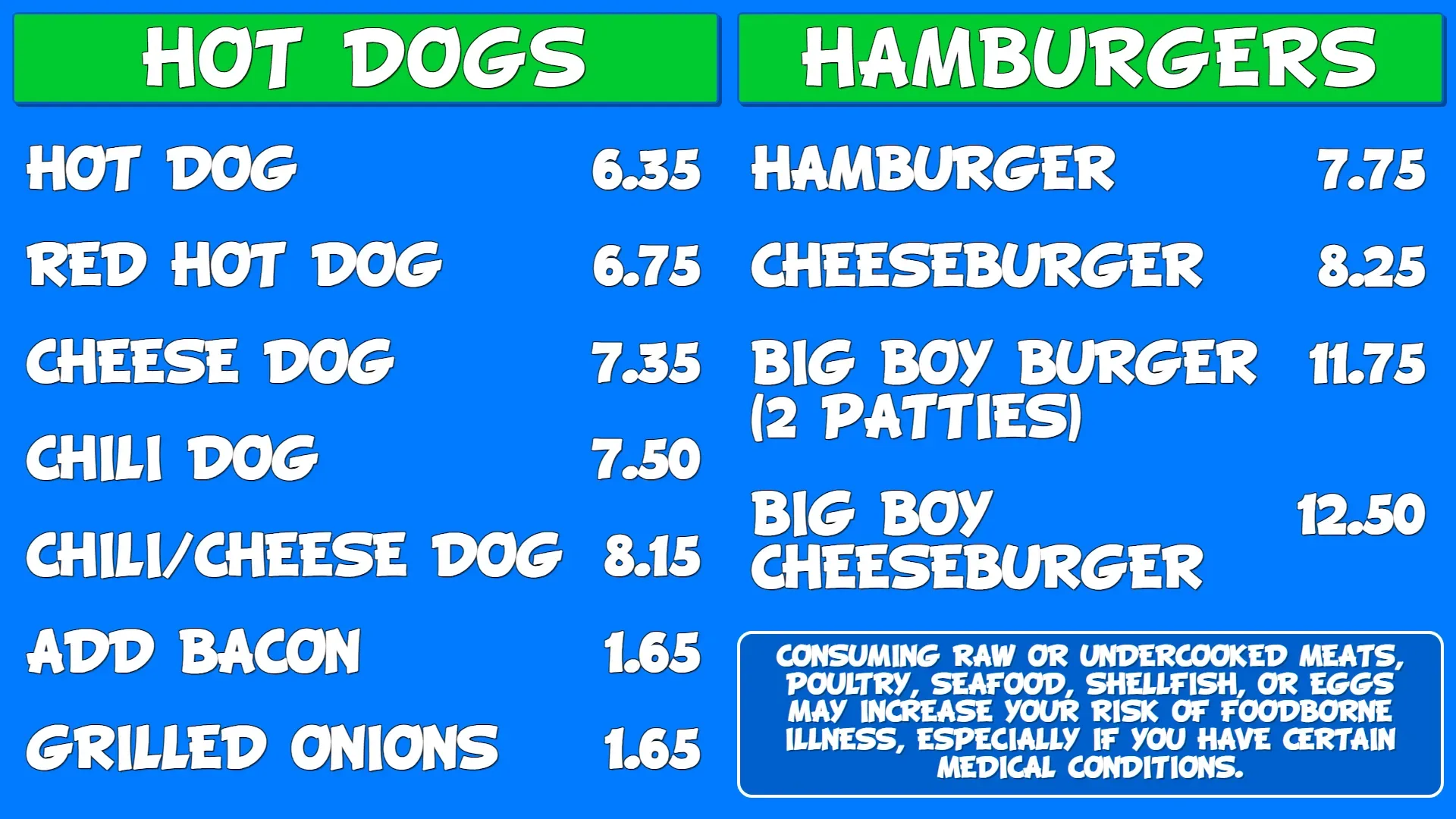
A Glenwood Drive-In menu board showing hot dogs and hamburgers with prices

The idea

No more printed menus that are wrong by Friday.

Every TV

Your menu, prices and pictures on every screen in the store.

From your phone

Change a price, mark something sold out, add a photo. No laptop needed.

Within a minute

Save it, and the screens show it within a minute. Nobody touches the TVs.

Running today in two restaurants

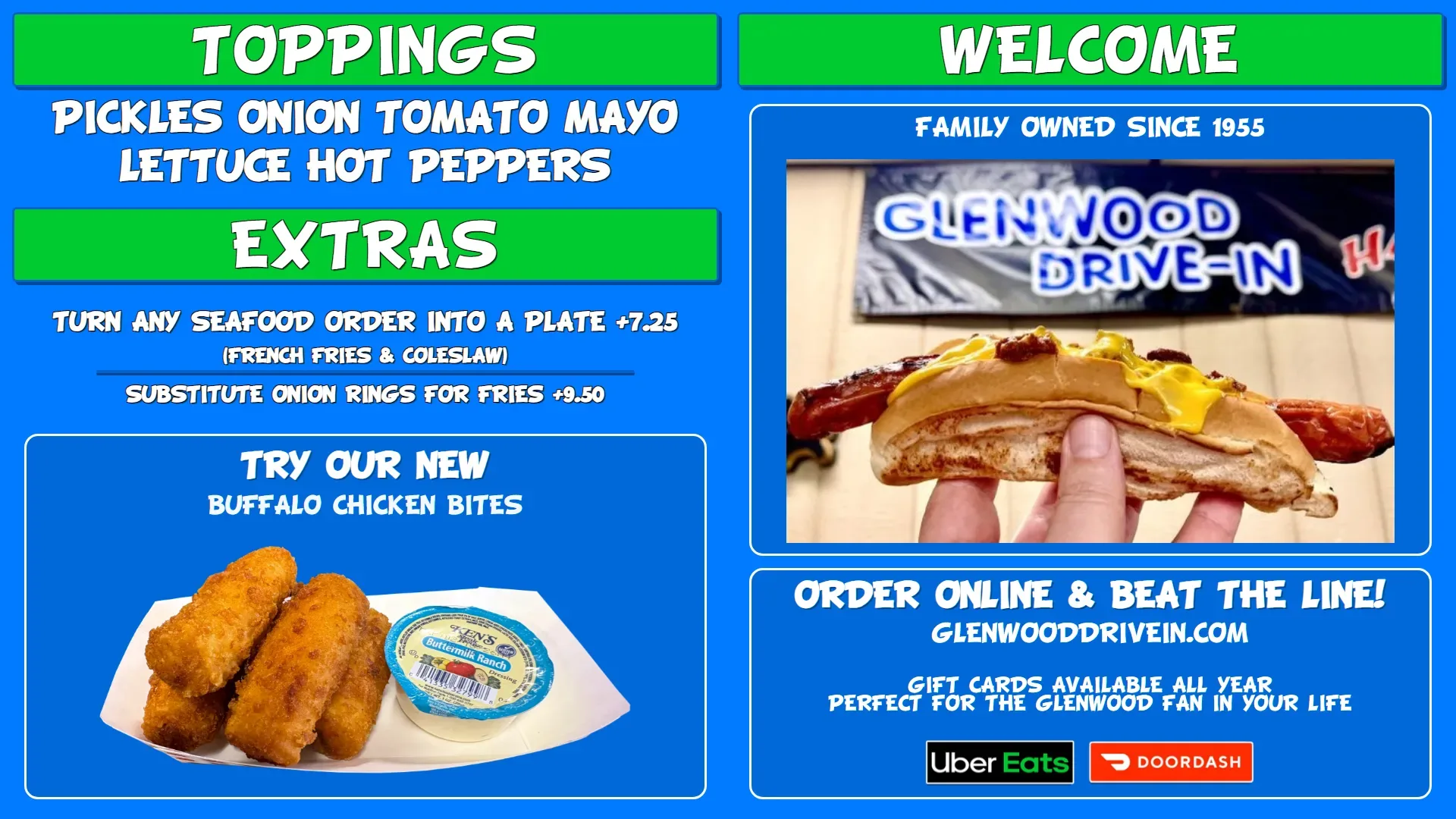
Glenwood Drive-In board with toppings, extras, a promo for buffalo chicken bites and a welcome panel

Glenwood Drive-In

8 screens: order boards and the service counter.
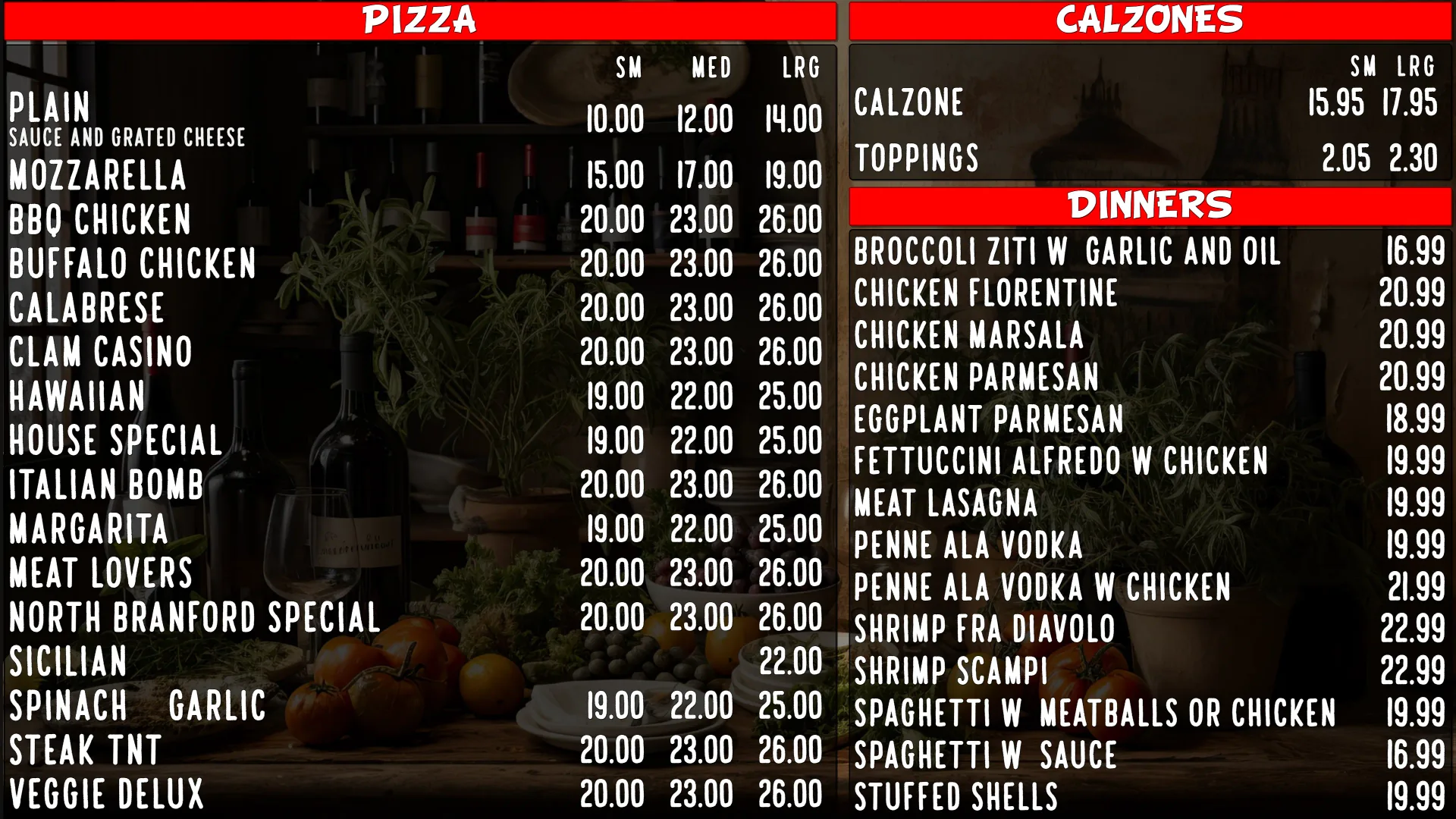
Belle Foods and Pizza board with pizza prices in three sizes, calzones and dinners

Belle Foods & Pizza

4 screens in sharp 4K.

Everyday changes

Change a price in seconds

  1. Open the admin on your phone and find the item.
  2. Type the new price, or rename it, or hide it for now.
  3. Save. The screens show it within a minute.

Add items, move them up or down, and search across every section. It works the same on a desktop.
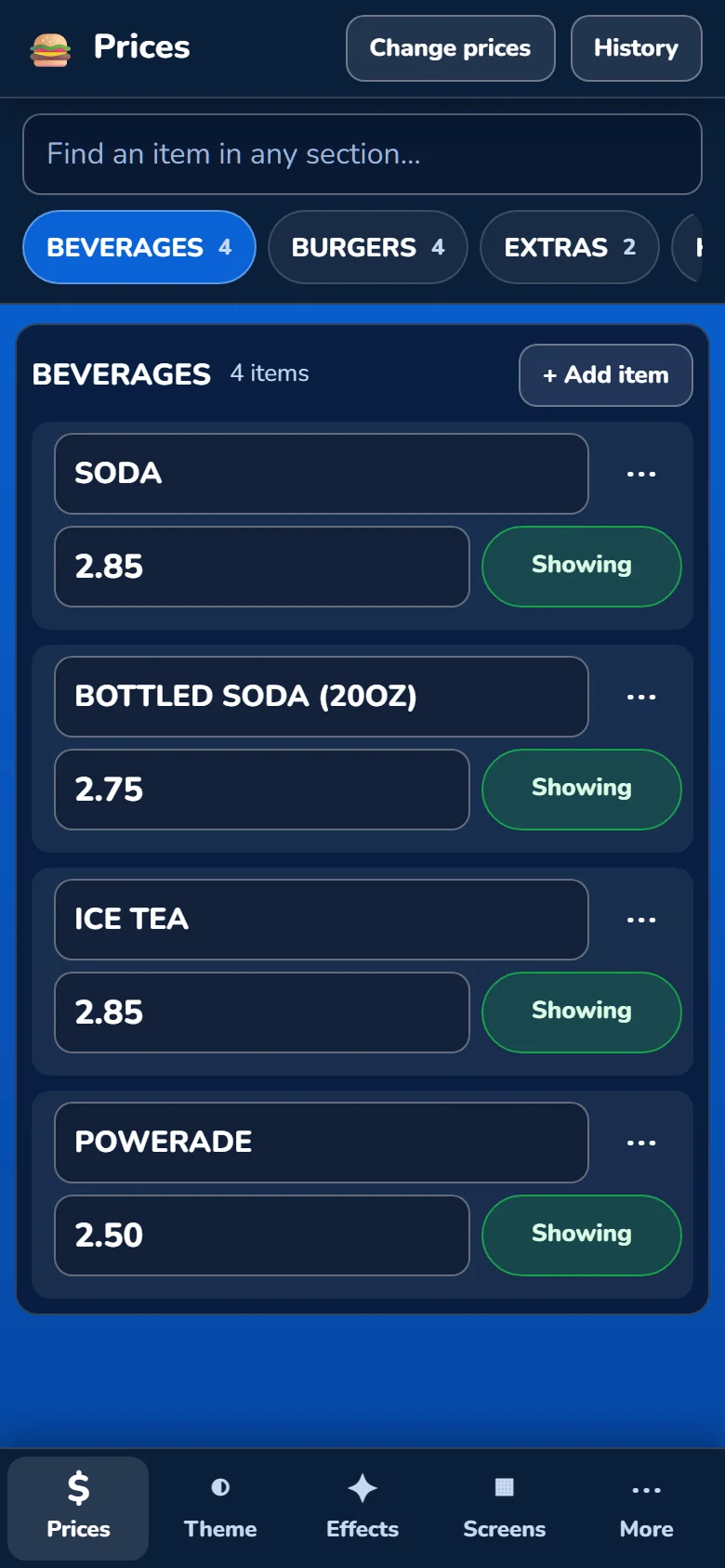
The Prices page on a phone: beverages with their prices and a Showing switch for each

Everyday changes

Ran out? One tap.

Sold out until tomorrow takes the item off the screens right away. It comes back by itself when you open next, so nobody has to remember.

Back early? Tap Back on. Closing late? A mark made after midnight still counts as tonight, so the item returns tomorrow, not the day after.
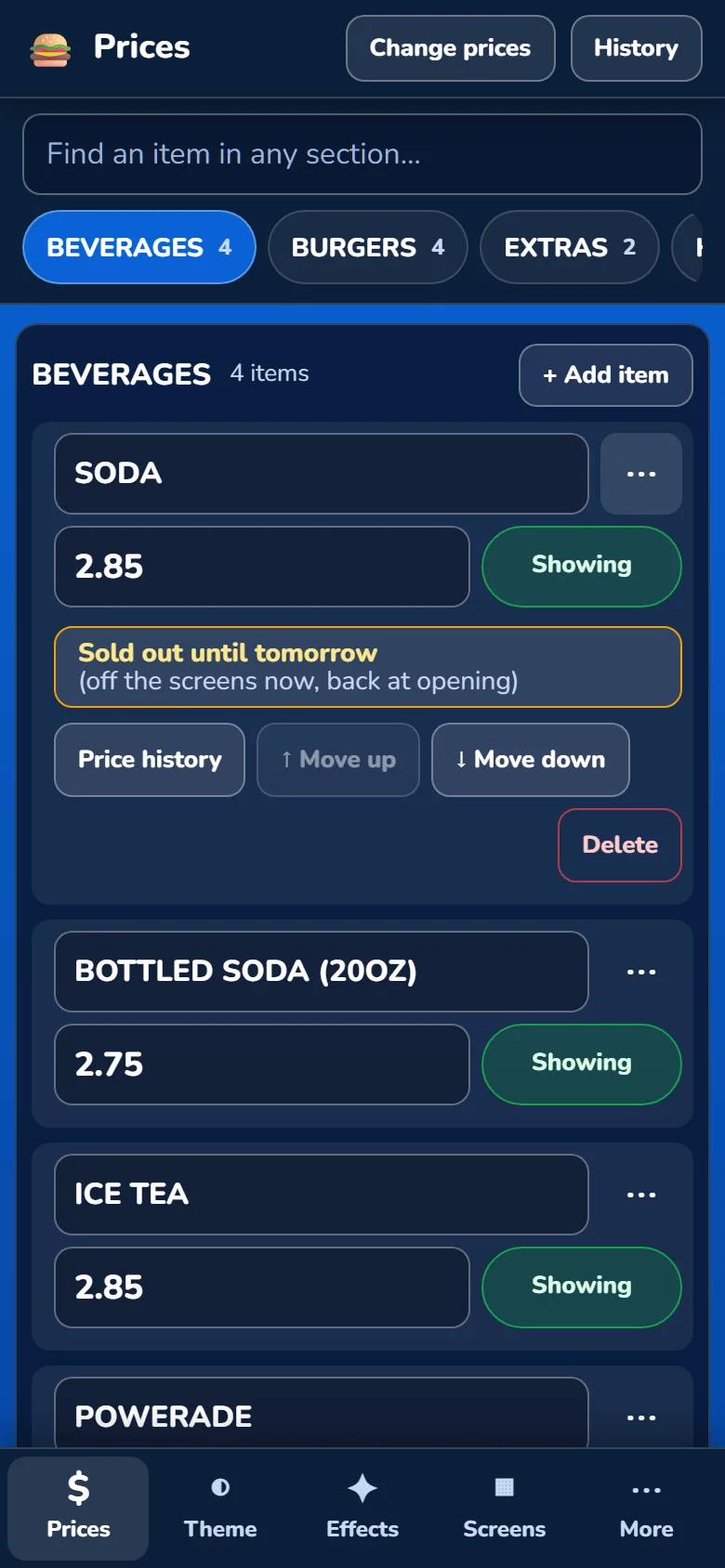
One item's menu on a phone: Sold out until tomorrow, Price history, Move up, Move down and Delete

Everyday changes

Raise prices across the menu at once

Dollars or percent

Raise or lower whole sections, or the whole menu.

Clean prices

Round up to the nickel or the dollar.

See before you apply

Every old and new price listed. Untick any item to leave it out.

Smart about deals

“2 for $5” or “16 oz” keep their numbers; only the price moves.
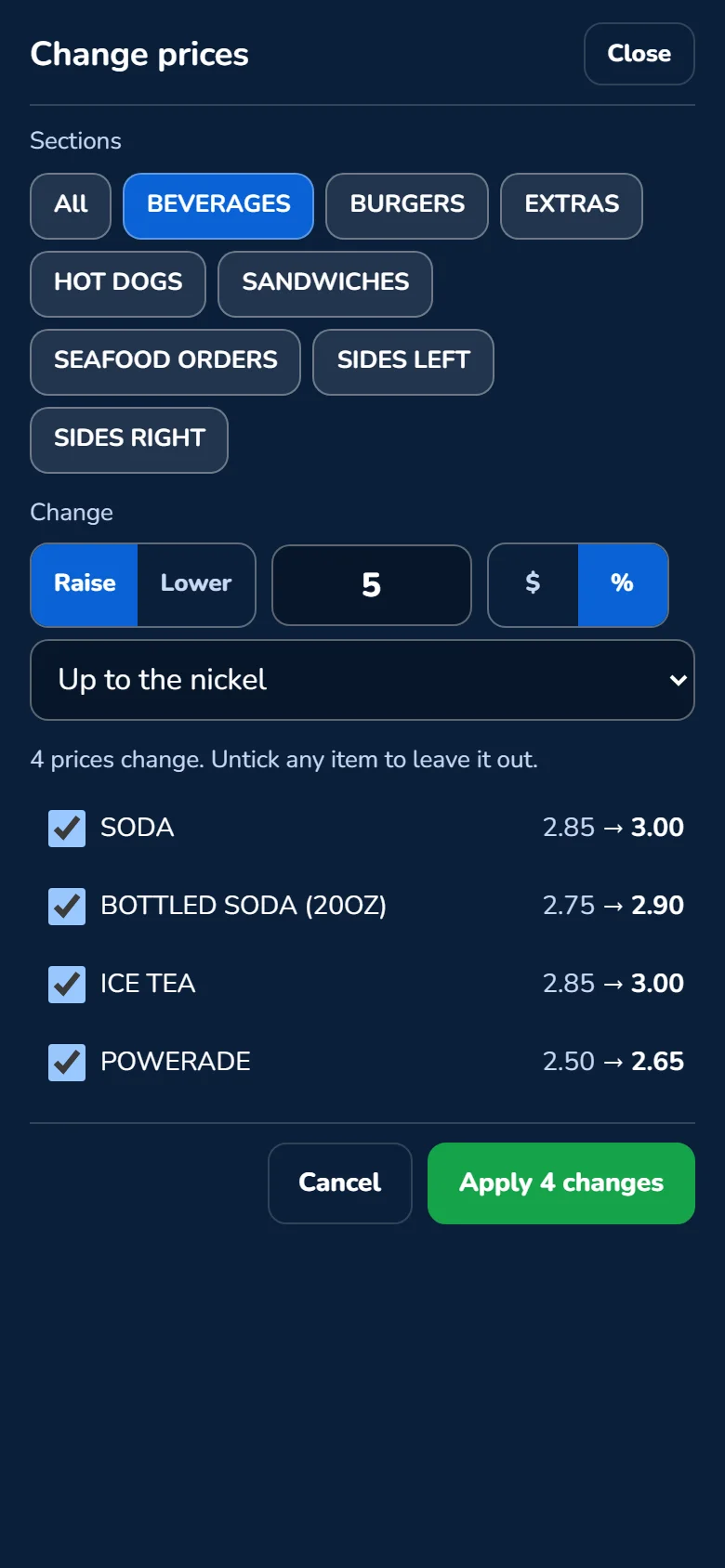
Change prices on a phone: Beverages raised 5 percent up to the nickel, each old and new price listed

Everyday changes

Every change remembered, every mistake undoable

History

Who changed what and when, with every price before and after. Kept for over a year.

One-tap undo

Undo a whole save, or just one item. It never overwrites anything changed since.

Restore deleted items

Deleted by accident? Restore brings it back exactly as it was, in the same spot.

Each item also has its own price history, so you can see what you charged last spring.

Your look

See every board at once

Live previews of every screen, laid out the way they hang in the store.

Type an item, like “cheeseburger”, and jump straight to it.

Check the boards from home before you open.
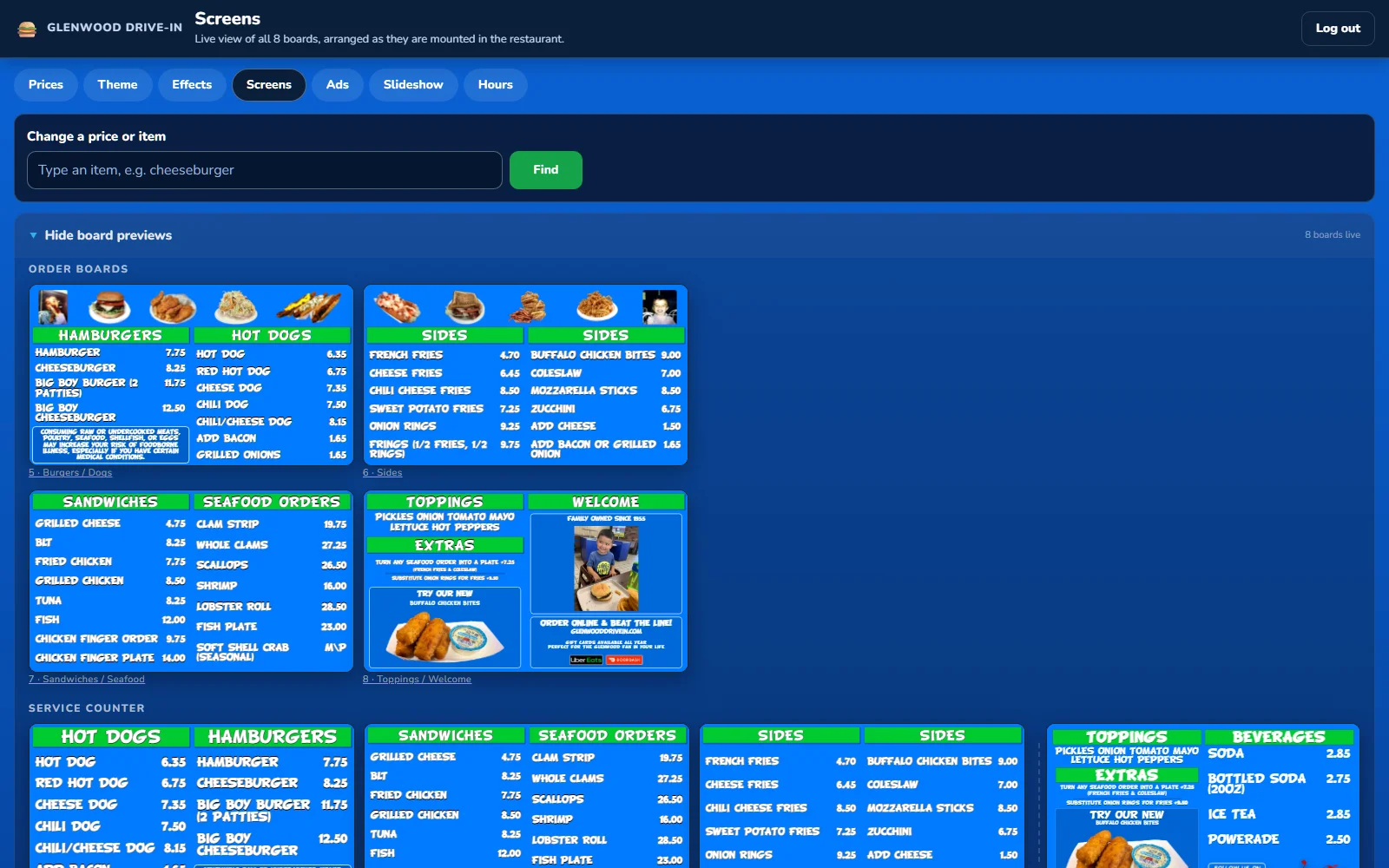
The Screens page: live previews of all eight Glenwood boards, arranged as the order boards and service counter

Your look

Themes that follow the calendar

Pick your everyday theme. Holiday themes take over on their dates, then step back by themselves: Thanksgiving, Christmas, Valentine’s Day, St. Patrick’s Day, Easter, Independence Day and more.

Try any theme in a preview first. Nothing changes on the TVs until you apply it.
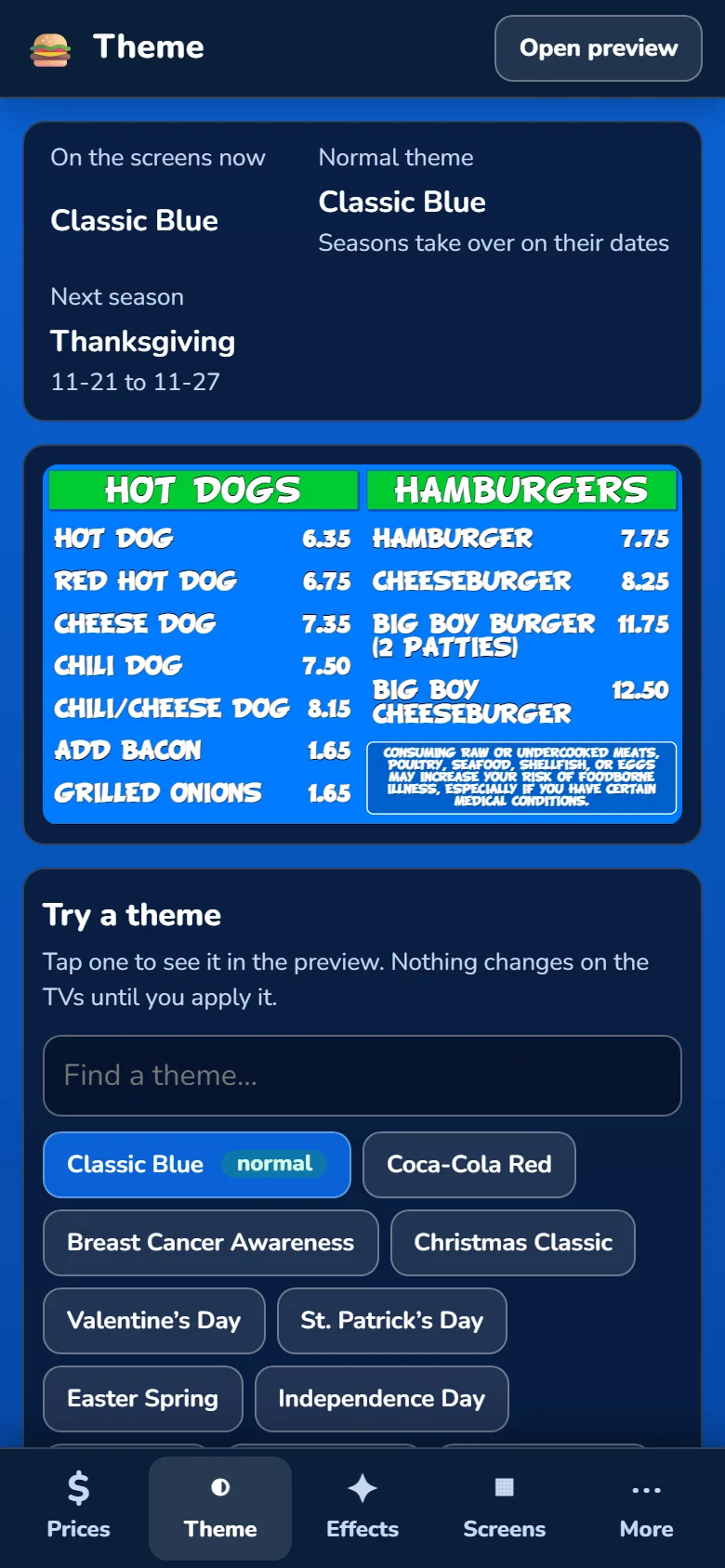
The Theme page on a phone: Classic Blue on the screens now, Thanksgiving next, and a list of themes to try

Your look

Holiday effects across the whole wall

Snow, falling leaves, fireworks, Santa’s sleigh: the effects move across all the screens on a wall as if they were one big screen, in step.

They come with the season’s theme. If a TV ever struggles, it draws a little less, but it never falls out of step with the others. Preview any moment on your phone before the customers see it.
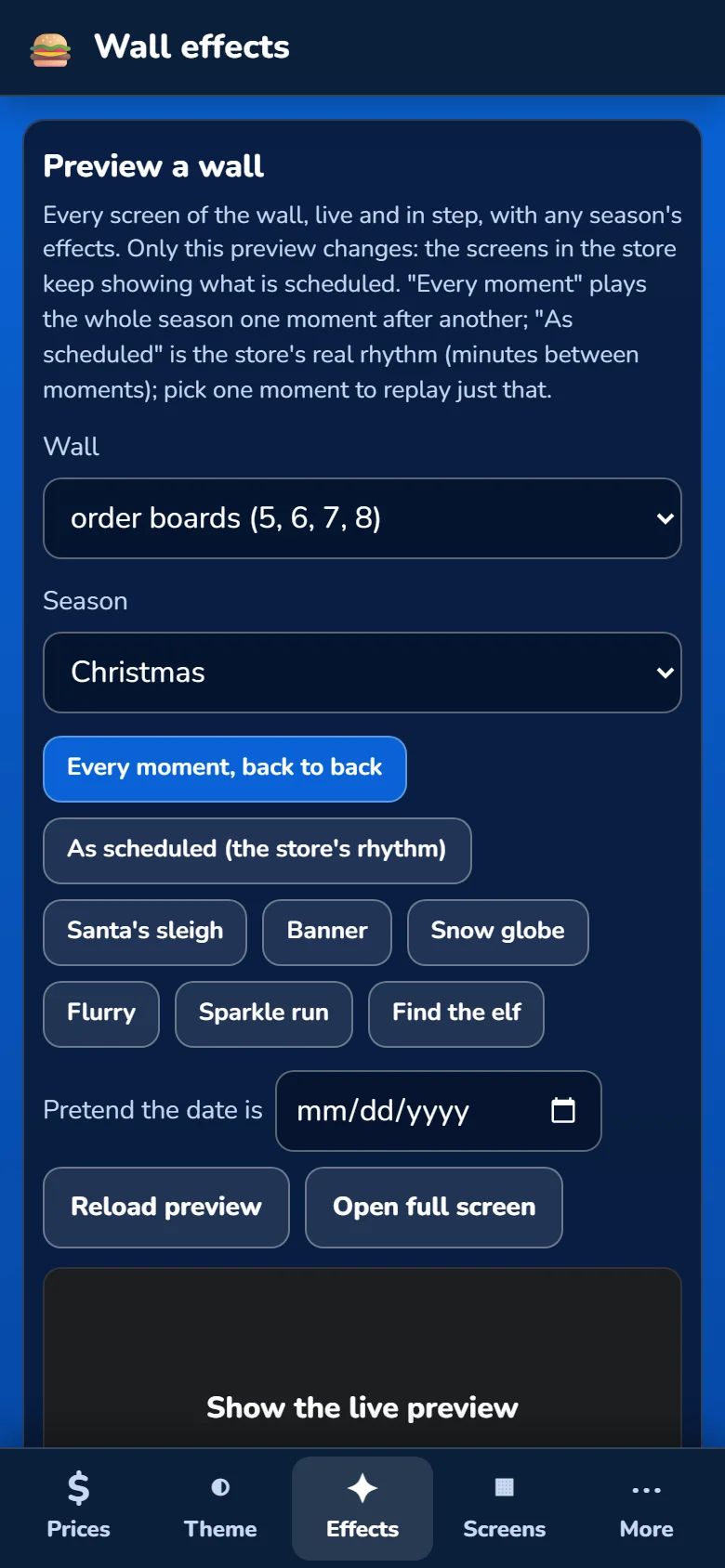
The Wall effects page on a phone: pick a wall and a season, and preview each moment

Your look

Food photos and promos, from your camera roll

Add a picture straight from your phone. The editor fits it to the board’s frame, so it never looks stretched.

Show or hide any picture with one switch: keep the summer ones for next summer.

Promo panels put a new item or a deal on the screens you choose.
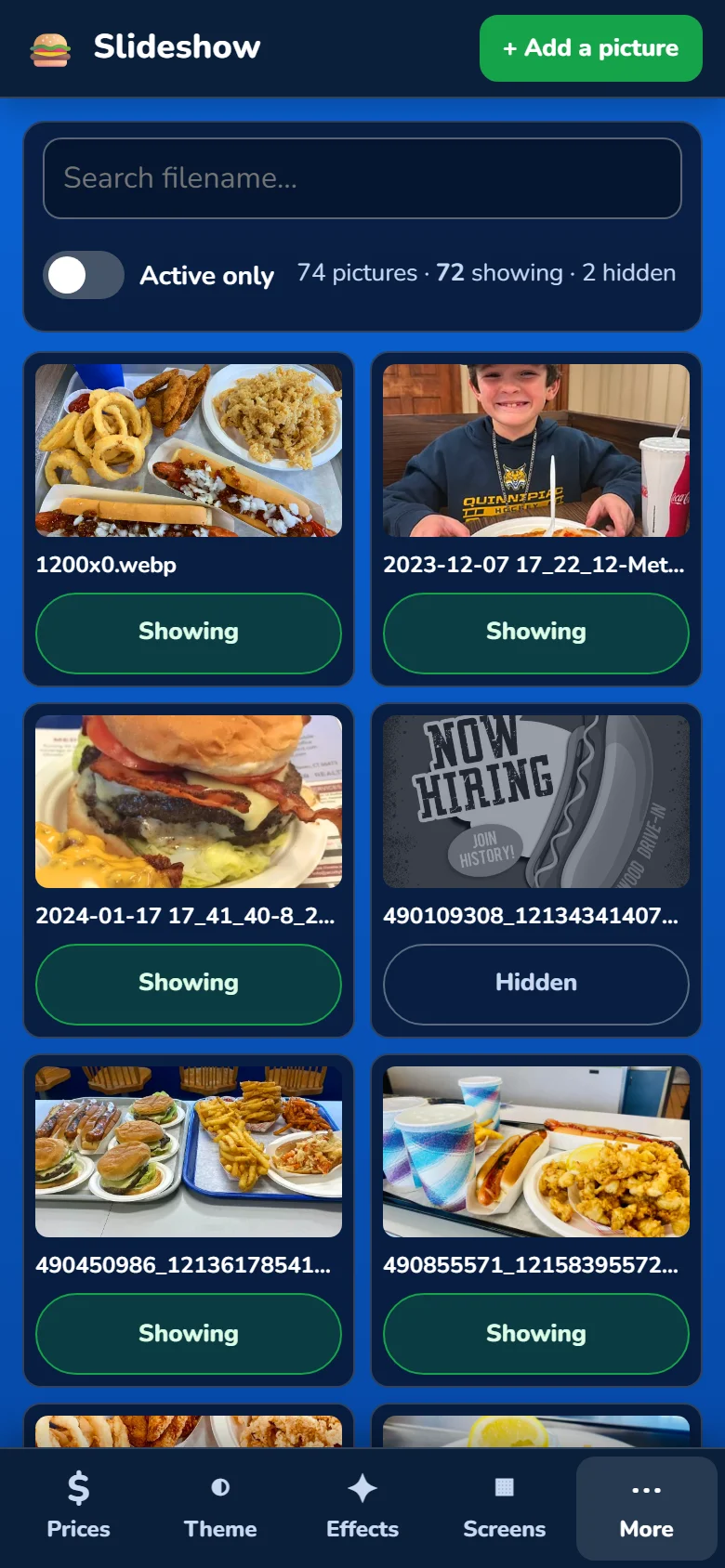
The Slideshow page on a phone: food photos, each with a Showing or Hidden switch, and an Add a picture button

Your look

Your hours, and a night mode

Set the opening hours for each day, late nights included: a closing time after midnight just works.

After closing, the screens can switch to a night screen instead of the full menu.

The same hours tell “sold out until tomorrow” when to bring an item back.
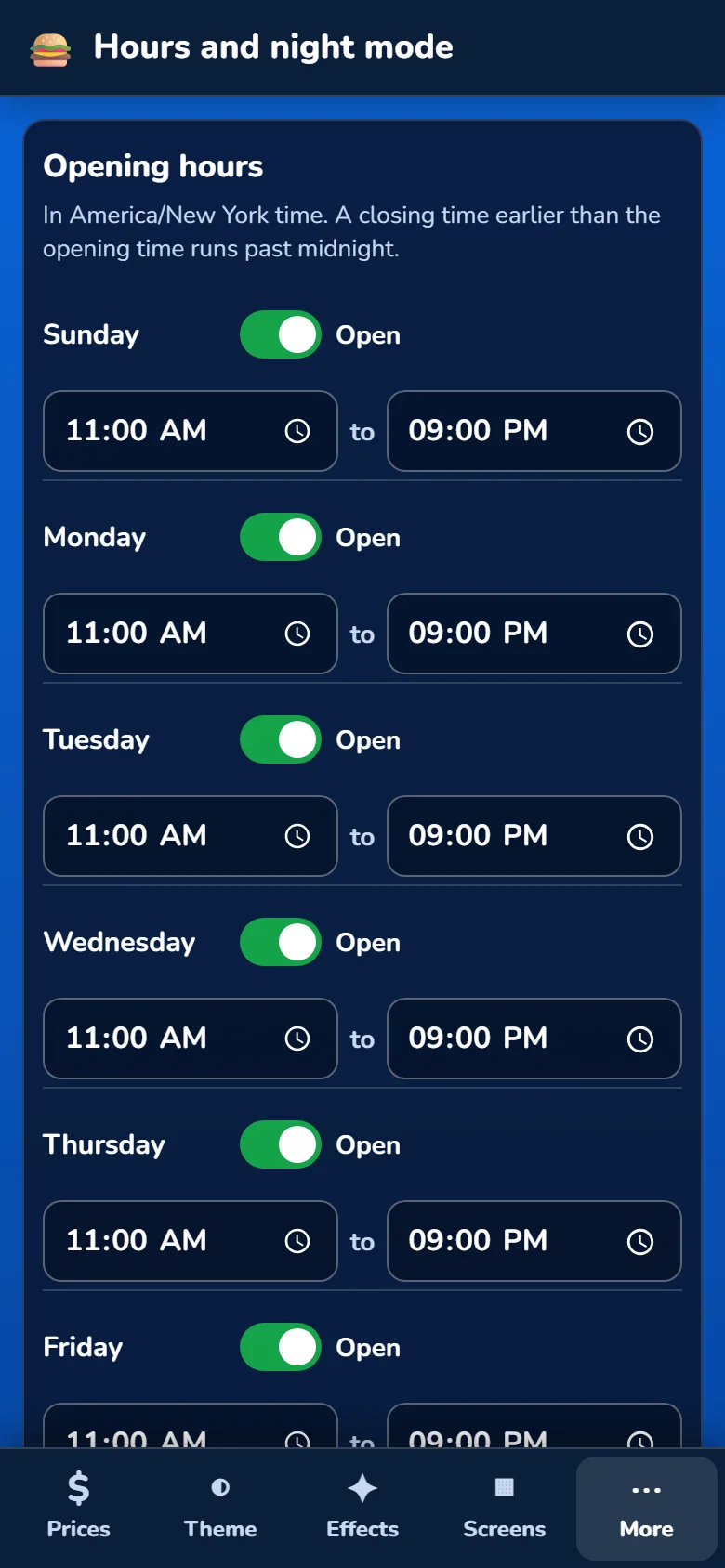
The Hours and night mode page on a phone: opening and closing times for each day of the week

Built to stay on

The screens look after themselves

Updates itself

New features reach every TV on their own. Nobody has to visit or press refresh.

Never an error page

If the system hiccups, each TV shows a recent picture of its own menu and comes back by itself.

Checked every 5 minutes

Every restaurant’s boards are tested around the clock.

Backed up every night

With copies kept off-site, and a restore test every month.

Built to stay on

How it fits together

  1. Your phone

    Prices, photos, hours

  2. Our server

    Your own private copy and database

  3. Small player

    One behind each pair of TVs

  4. Your TVs

    HD or 4K, any size

Your data stays yours: each restaurant has its own database, never shared.

Everyone gets their own login, and the history shows who changed what.

Add it to your home screen and it opens like an app.

We can check and fix the players remotely, without a visit.

Getting started

From first visit to live boards

  1. Walk the store

    Count the screens and collect your menu and photos.

  2. Design your look

    Your colors, your style, your sections.

  3. Set up the players

    Small players go behind your TVs.

  4. You’re live

    Your own logins and a walkthrough on your phone.